AnyFrame
Thanks for picking up AnyFrame! You can turn an old tablet, phone, laptop, or compatible TV into a digital photo frame. No technical experience is needed.
There are two ways to use AnyFrame:
- Connected frame — your photos sync between your phone/computer and display device, and you can share the frame with family or friends.
- Local Vault — photos stay on one device and work without an internet connection.
Most people will want a Connected frame. If you specifically want a fully offline setup, jump to Local Vault.
Open AnyFrame1. Set Up Your Account — Connected Frame
- Go to anyframeapp.com on your phone or computer.
- Tap My Account.
- Sign in with Google, or choose First Time Here? Sign Up.
- Enter the license key from your Gumroad purchase email, then tap Unlock.
- Tap Create a New Share Code. Save the code — you'll need it for your display device.
2. Turn Your Display Device Into a Photo Frame
On the tablet, phone, laptop, or compatible TV you want to use as the actual frame:
- Go to anyframeapp.com.
- Tap This Tablet/TV.
- Enter your Share Code.
- Tap Start Displaying Photos.
No account login is required on the display device.
Make it feel like a real app
- Phone/tablet: use the browser's Share/Menu option and look for Add to Home Screen.
- Laptop: Chrome or Edge may offer an Install App option in the address bar or browser menu.
- TV: use the fullscreen button near the bottom-right of the display when available.
Set up your screen for everyday use
A few small adjustments can make your device feel much more like a dedicated photo frame:
- Power: If the frame will stay in one place, keep the device plugged in or place it where charging is easy.
- Orientation: Position the screen in portrait or landscape orientation based on your photos and where the device fits best.
- Brightness: Choose a comfortable brightness for the room. You usually don't need maximum brightness for an always-on photo display.
- Fullscreen: Use fullscreen or Add to Home Screen when available to minimize browser controls and make AnyFrame feel more like a dedicated frame.
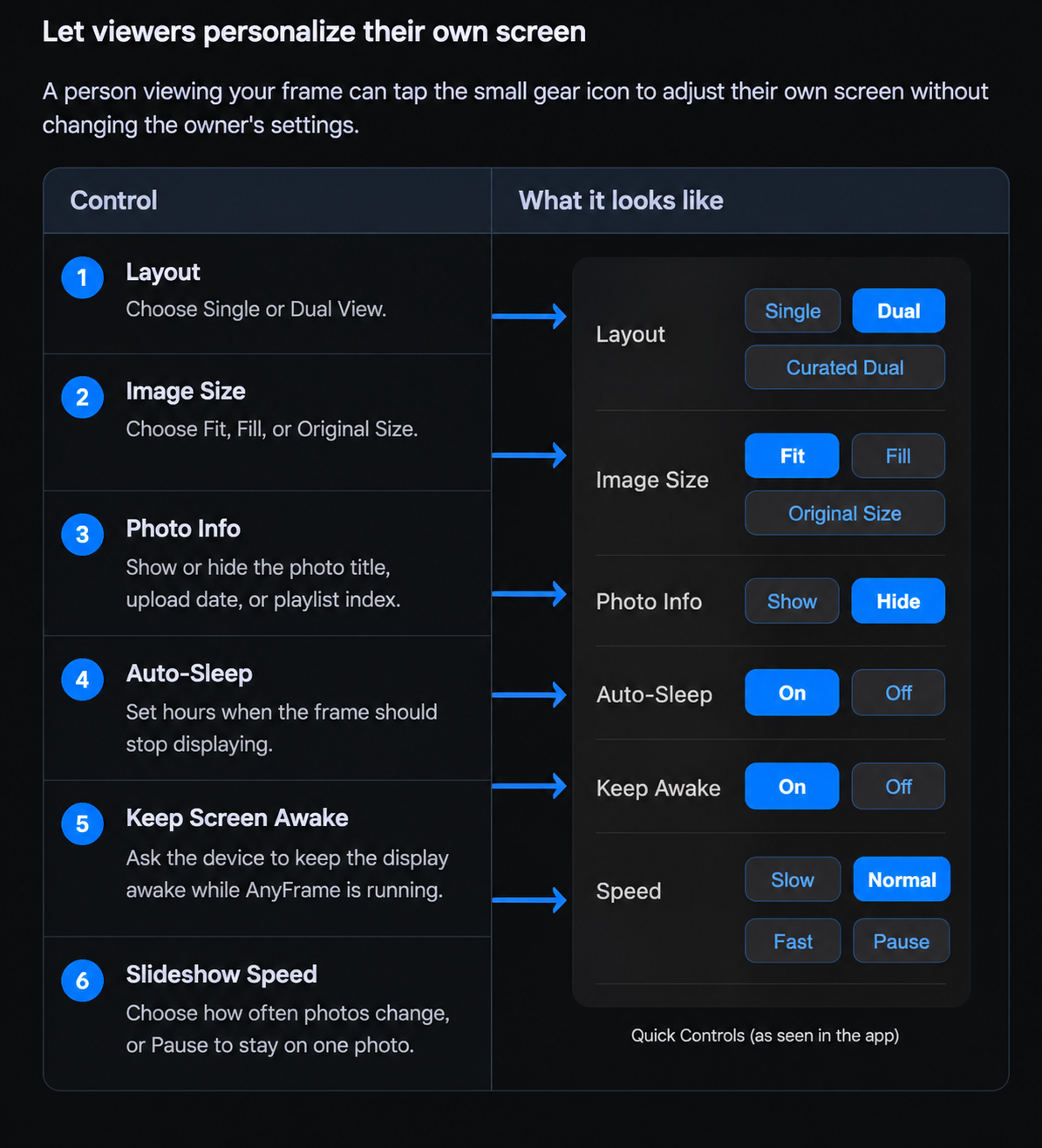
- Keep Screen Awake: Open Quick Controls (⚙️) and turn this on if you want AnyFrame to ask the device to keep the display awake while the frame is running.
- Auto-Sleep: Set sleep hours if you don't want the frame displaying overnight or during other times you choose.
- Stand or mount: A simple tablet/phone stand, laptop stand, TV mount, or existing shelf can turn a screen into a permanent-looking frame. Think about where the charging cable will run, too.
3. Upload and Manage Photos
Back on your phone or computer, sign in and open Your Frames → Manage.
- Upload multiple photos and GIFs.
- Add captions.
- Delete photos.
- Choose Single, Dual View, or Curated Dual.
- Set slideshow speed, including Pause.
- Turn on Auto-Sleep.
4. Local Vault — Fully Offline
- On the device itself, go to anyframeapp.com.
- Tap Local Vault.
- Tap Add Photos & GIFs and choose your images.
- Tap Start Local Display.
From the Local Vault display, tap Switch to Remote Control to add photos, delete photos, rename captions, or adjust speed and layout.
Troubleshooting
GIFs look choppy on my TV.
Older or lower-powered TV browsers can struggle with large animated GIFs. This is a browser/device limitation rather than a setup problem.
I forgot my password.
From the Log In screen, tap Forgot your password? and follow the emailed link.
I can't change a photo or setting.
Make sure you're signed into the account that owns the frame. Only the original frame owner can manage the photos and settings for that connected frame.
I forgot my Share Code.
Sign in and look under Your Frames. Your created frames are listed there.